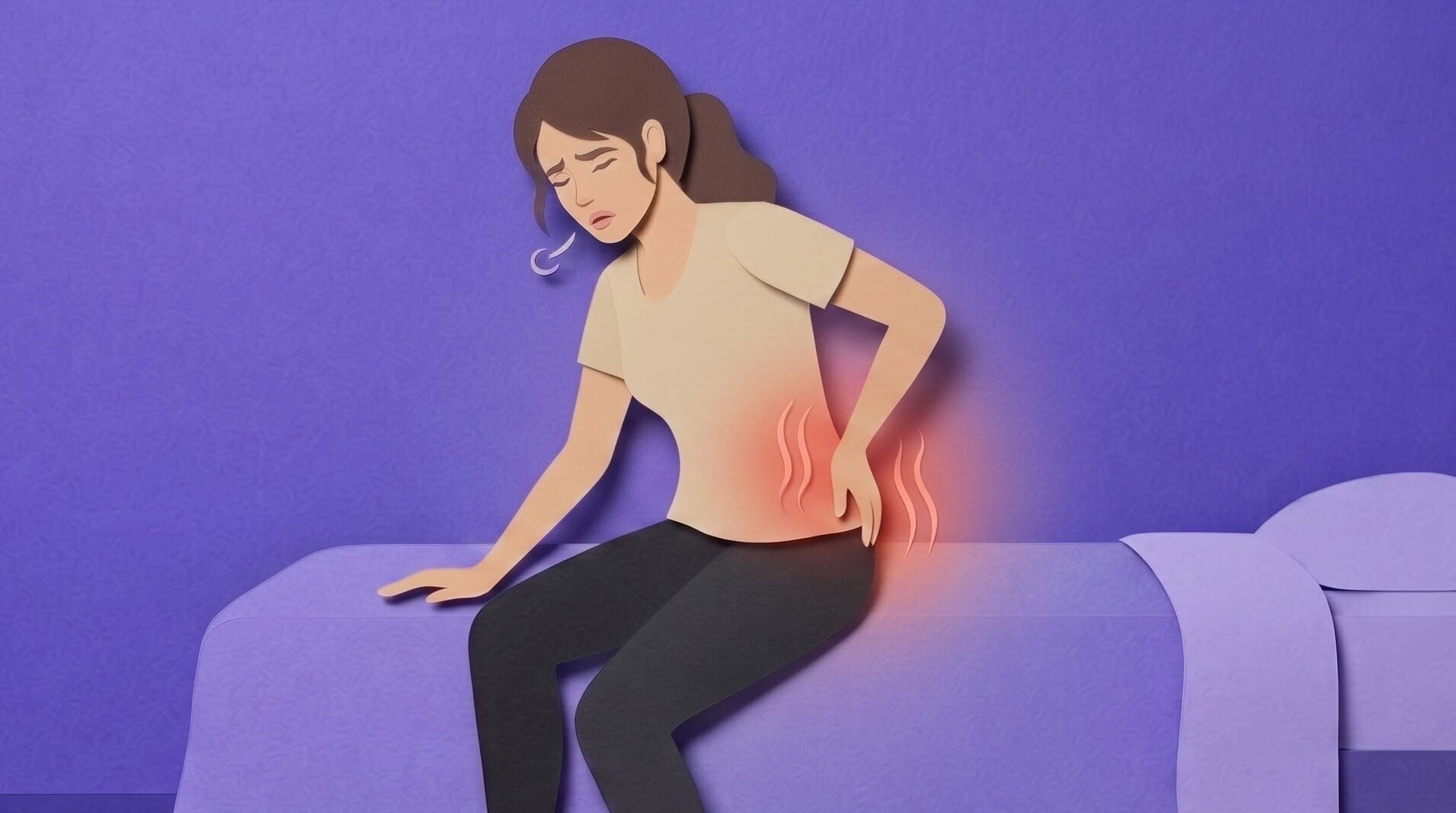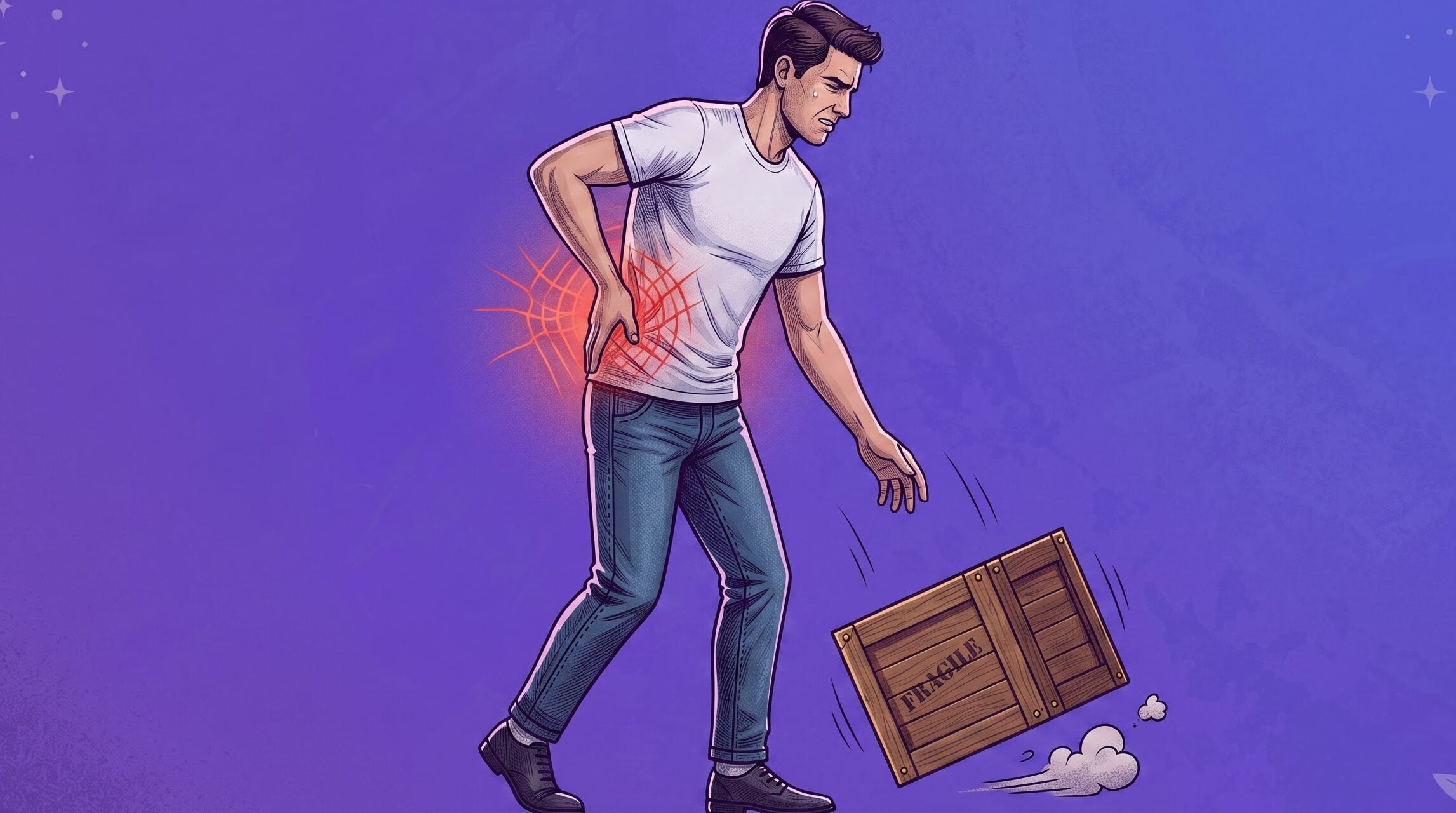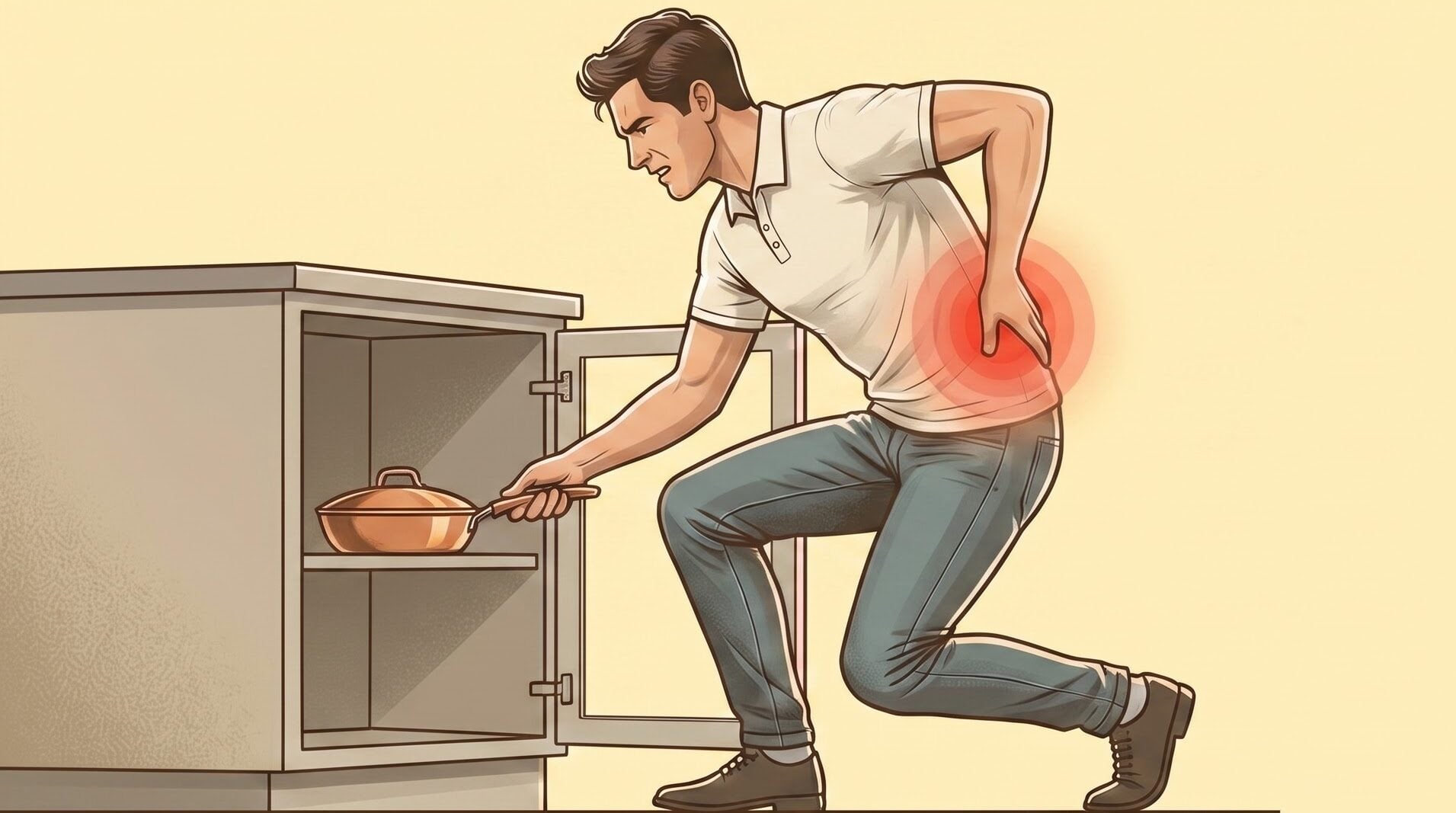




Modern work culture in India has transformed how we spend our days, with millions of professionals in corporate tech hubs like Bengaluru, Gurgaon, and Mumbai glued to laptop screens for 8 to 10 hours daily. While this digital lifestyle keeps us productive, it often comes at a high cost to our spine health, making a proper pain-free office setup essential for preventing chronic, work-related back pain.
If you frequently find yourself slouching by 3:00 PM or reaching to massage an aching lower back after back-to-back virtual meetings, you are far from alone. Sitting for prolonged hours in an unsupportive chair places tremendous mechanical pressure on your lumbar spine, neck muscles, and hip joints.
In fact, according to the World Health Organisation (WHO), musculoskeletal disorders are among the leading contributors to disability worldwide, with office-related back pain standing as one of the primary culprits.
The good news? You don’t need expensive standing desks or complex office overhauls to protect your spine. With a few smart, ergonomic adjustments, you can transform your workspace into a comfortable environment that supports your posture all day long.[1]
You can also check related articles:
- Is It Time to Replace Your Office Lumbar Support? 7 Warning Signs
- Posture and Ergonomics Tips for Pain Relief
Why Workspace Optimisation Matters: The Real Science of Spine Strain
Human bodies are built for continuous, natural movement, not for remaining locked in a chair for 8 to 10 hours every day. Yet in today’s tech-driven work environment, from home study desks to bustling corporate tech parks, the average office worker spends over 75% of their workday seated.
Without a properly arranged, pain-free office setup, prolonged sitting silently places immense mechanical pressure on your lower back (kamar dard), accelerating daily wear and tear on your spine.
The Biological Impact of Prolonged Sitting on Your Spine
When you sit for hours at a time, your lower back bears the brunt of your body weight. Prolonged sitting compresses the lumbar intervertebral discs, tightens your hip flexors, weakens stabilising gluteal muscles, and restricts healthy blood circulation to your lower back and legs.
- Flattening the Spine’s Natural Curve: Your lumbar spine naturally curves inward in a healthy S-shape. Sitting in an unsupportive chair forces your lower back to collapse outward into a slouched C-shape.
- Increased Disc & Muscle Pressure: Flattening this natural curve dramatically increases mechanical tension on your spinal discs, surrounding ligaments, and back muscles. Over time, this constant strain causes morning stiffness, painful muscle spasms, and increases the risk of chronic conditions like herniated discs (slip disc).
- The Misaligned Wheel Analogy: Working in an unoptimized workspace is just like driving a car with misaligned wheels; every extra kilometre creates friction and uneven structural damage.
The Hidden Cost of Poor Ergonomics on Productivity & Well-Being
Back pain is far more than a physical inconvenience; it directly drains your mental clarity, focus, and overall quality of life.
- Impact on Career & Work Performance: Back pain is the single leading cause of work-related disability globally, causing millions of lost workdays each year. Chronic back discomfort leads to reduced concentration, lower job satisfaction, and increased absenteeism.
- The Mental Health Connection: Living with constant physical ache (kamar dard) triggers daily stress, fatigue, and irritability. In contrast, upgrading to a pain-free office setup boosts your daily energy levels, sharpens mental focus, and restores your working motivation.
- Financial & Long-Term Health Costs: While companies lose billions in diminished productivity and healthcare expenses, individual workers face long-term medical bills, reduced mobility, and diminished quality of life if postural warning signs are ignored [258–259].
By making a few simple, targeted adjustments to your chair, screen, and daily movement habits, you can protect your spinal health while boosting your daily performance and long-term well-being!
How Do You Set Up Your Chair for a Pain-Free Office Setup?
When building a true pain-free office setup, your chair is the absolute foundation of your daily spine health. Since most Indian professionals spend 6 to 10 hours seated every day, selecting and adjusting your seat correctly is a vital health necessity, not an optional luxury
Step 1: Set Up Ergonomic Seating & Proper Lumbar Support
When building a true pain-free office setup, your chair is the absolute foundation of your daily spine health. Since most Indian professionals spend 6 to 10 hours seated every day, selecting and adjusting your seat correctly is a vital health necessity, not an optional luxury.
Why Lumbar Support is Non-Negotiable for Your Spine
Your lower back (lumbar spine) naturally curves inward in a healthy S-shape. When you sit in a standard flat chair or slouch forward over your laptop, that natural arch flattens into an awkward C-shape. This posture forces your spinal discs, lower back muscles, and surrounding ligaments to stretch and carry excessive physical stress all day long.
A chair with proper lumbar support gently cradles this lower arch, preserving your natural curve and preventing muscle exhaustion. In fact, research by Rempel et al. (2019) demonstrated that office workers who switched to chairs with adjustable lumbar support reported significantly lower back discomfort and improved posture throughout their workday
What Makes a Great Ergonomic Chair?
Audit your current office or WFH seat against these 6 essential features:
- Adjustable Lumbar Padding: Moves up, down, or in and out to fit the exact curve of your lower back.
- 2–3 Inch Seat Depth Gap: Leaves 2 to 3 inches of clear space between the front edge of the seat cushion and the back of your knees, ensuring healthy blood circulation.
- 90-Degree Knee Rule: Adjusts high or low enough so your feet rest flat on the floor with your knees bent at a comfortable 90-degree angle.
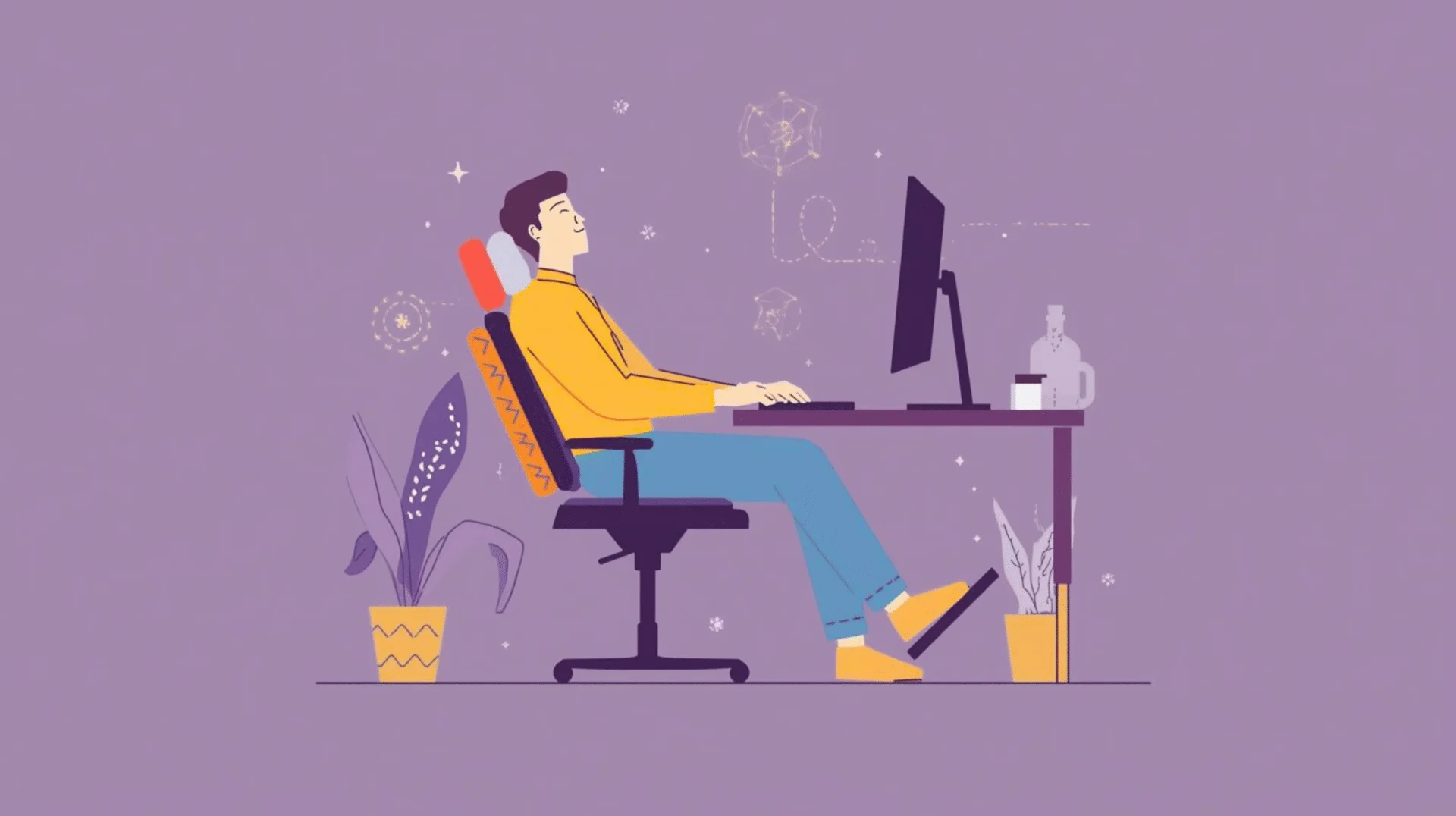
- 100°–110° Recline: Allows a subtle backward recline to relieve direct vertical pressure on your spinal discs while working.
- Breathable Mesh Fabric: Keeps air circulating around your back, which is especially important during warm Indian summers.
- Adjustable Armrests: Supports your forearms so your shoulders don’t slump or tense up while typing.
Simple DIY Hacks for WFH & Budget Chairs
If you don’t have access to a high-end ergonomic chair at home or in your office, don’t worry! You can easily upgrade any standard seat with these quick physio hacks:
- Add an External Lumbar Roll: Place a contoured memory foam roll behind your lower back to maintain your arch.
- The Rolled-Towel Hack: Roll up a firm bath towel, secure it with rubber bands, and position it horizontally right above your belt line.
- Small Accent Pillow: Place a firm, compact cushion in the small of your lower back to prevent your spine from collapsing outward.
If your chair lacks built-in lower back padding, adding a firm ergonomic lumbar support cushion fills the gap behind your lower spine, preserving your natural S-curve and preventing posture fatigue during long shifts.
Fine-Tuning Your Chair: Height, Seat Depth & Pelvic Alignment
Buying a good chair is only half the battle. The real magic happens when you calibrate it to fit your unique body proportions. Even the highest-end ergonomic chair will fail to protect your spine if set up incorrectly.
Taking 5 minutes to adjust your seat correctly ensures your pain-free office set-up provides maximum therapeutic support all day long
4 Steps to Calibrate Your Chair
Run through these quick checks while sitting at your desk right now:
- Ideal Chair Height (The 90–100° Knee Rule):
- Adjust your seat height until your feet rest flat on the floor (or on a stable footrest) with your knees bent at a 90–100° angle and thighs parallel to the ground.
- The Finger Test: Slide your fingers between the back of your knees and the edge of the seat cushion. You should feel a clear 2–3 inch gap . If there is no gap, your thigh circulation is being restricted!
- Seat Depth & Pan Alignment:
- Sit all the way back against the backrest. If your seat pan is too deep, you’ll be forced to slouch forward, losing all lumbar support. If it’s too shallow, your upper thighs won’t be supported, leading to localised pressure points.
- Backrest Recline (100°–110° Angle):
- Avoid sitting at a rigid, 90-degree angle! According to guidelines from OSHA (Occupational Safety and Health Administration), a slight backward recline of 100°–110° significantly reduces lower back disc pressure while keeping you alert and productive.
- Foot & Hip Positioning:
- Keep your hips slightly higher than your knees to promote pelvic neutrality.
- Avoid leg-crossing: Crossing your legs for long periods tilts your pelvis out of alignment and strains your lower back.
- Stop “perching”: Sitting on the front edge of your chair during tense work moments strips away all back support and doubles spinal stress!
Correcting Pelvic Tilt & Resetting Your Posture
Many desk workers unknowingly tilt their pelvis backwards while typing, which flattens the natural lumbar arch into an uncomfortable slouch [258–260].
To break this habit:
- Sit deep into the backrest, so your lower back stays continuously supported.
- Keep both feet grounded on the floor or a footrest.
- Gently engage your core muscles for a few seconds every hour to reset your pelvic alignment.
Why Proper Chair Calibration Is Critical
Optimising your chair setup is the single most important foundation of workspace ergonomics. Without a properly adjusted seat, even expensive desks and high-end monitors cannot shield your spine from daily strain.
In fact, landmark clinical research by Lis et al. (2007) revealed that office workers who used ergonomically adjusted chairs experienced 45% fewer reports of lower back pain after 6 months compared to those using standard, unadjusted seating.
Step 2: Align Your Desk and Monitor to Eye Level
Once your chair is calibrated, screen and table height form the second pillar of a true pain-free office setup. Even with great lumbar support, an improperly positioned monitor forces you to lean in or hunch over, triggering a strain cycle across your neck, shoulders, and upper back.
Proper screen alignment keeps your eyes, neck, and spine working in natural harmony, protecting you from postural fatigue and digital eye strain.
Why Screen Placement Matters: Computer Vision Syndrome (CVS)
Craning your neck toward a low or misaligned screen is the single leading cause of forward head posture (“tech neck”) and rounded shoulders.
According to the American Optometric Association (AOA, 2020), poorly positioned monitors contribute to Computer Vision Syndrome (CVS), which impacts 50–70% of office workers. Common symptoms include:
- Persistent eye fatigue and blurred vision
- Tension headaches starting from the base of the skull
- Upper back and neck stiffness after long typing shifts
Desk Surface Height, Keyboard Alignment & Wrist Neutrality
Once your chair and monitor are in position, your desk surface is where hands, wrists, and shoulders interact with your computer for hours every da. Correcting table height and peripheral layout is essential for eliminating shoulder shrugging, wrist fatigue, and upper back tightness in your pain-free office set-up.
Workspace Check: Is Your Desk Setup Straining Your Arms & Shoulders?
Audit your typing posture with these 3 quick checks while sitting at your table:
- Ideal Desk Height & Shoulder Relaxation:
- When seated comfortably, your desk surface should rest right at elbow height, allowing your elbows to stay bent at a natural 90–100 degree angle close to your sides.
- Your shoulders should remain fully dropped and relaxed, never hunched up toward your ears.
- If your desk is too high: Raise your chair until your elbows reach table level, and place a footrest under your feet to maintain proper leg support.
- If your desk is too low: Place sturdy risers under the table legs or transition to an adjustable height desk.
- Keyboard & Mouse Placement (The “B-Key” Centring Rule):
- Position your keyboard directly in front of your chest, aligning the “B” key with your belly button (navel) for a centred typing stance.
- Place your mouse immediately adjacent to the keyboard within easy, natural reach. Avoid reaching forward or flaring your arm outward, which places unnecessary strain on your shoulder joint.
- Neutral Wrist Posture & Gel Cushioning:
- Keep your wrists straight and neutral while typing; avoid angling them upward toward the keys or sagging them down against hard desk edges.
- Use soft foam or gel wrist pads to eliminate hard contact pressure points, ensuring typing feels fluid and effortless without straining your forearms or fingers.
Avoiding Forward Head Posture (“Tech Neck”) & Cervical Strain
Even with a perfectly calibrated chair and desk, many of us develop the habit of leaning our heads forward toward our screens as the workday progresses. This habit, commonly known as “Tech Neck”, places immense, hidden stress on your cervical spine.
According to landmark biomechanical research by Kapandji (2008), for every single inch your head shifts forward past neutral alignment, an extra 10 pounds (4.5 kg) of mechanical pressure is loaded onto your neck muscles and cervical spine! Resting your head 2 to 3 inches forward means your neck is holding up equivalent weight to a heavy bowling ball all afternoon.
Do You Have “Tech Neck”?
Check off any subtle signs you experience by the end of your workday:
- The Screen Gravitational Pull: Feeling magnetically drawn closer to your laptop screen during intense typing or meeting sessions.
- Base-of-Skull Stiffness: Experiencing tight, throbbing tension headaches starting at the top of your neck.
- Rounded Upper Back: Noticing your shoulders rounding inward and your upper back curving into a slouch.
4 Practical Ways to Correct Forward Head Posture
Correcting forward head tilt is easy when you build simple posture resets into your daily routine:
- Maintain Your Screen Height: Keep the top edge of your monitor at eye level so your neck never tilts downward.
- Perform Daily “Chin Tucks”: Sit up straight, gently glide your head horizontally backwards (as if making a double chin), and align your ears directly over your shoulders. Hold for 3 seconds and repeat 5 times every hour.
- Set 30-Minute Micro-Reminders: Use phone alerts or sticky notes on your monitor to reset your neck and shoulder alignment every half hour.
- Adopt Neck-Friendly Work Habits:
- Use a Laptop Riser & External Keyboard: Never look down directly at a laptop resting flat on a table. Raise the laptop on a stand and use an external keyboard and mouse.
- Hands-Free Calling: Use a headset or earphones instead of cradling your phone between your ear and shoulder during calls.
- Document Placement: Keep paper documents or reference sheets on a vertical holder right next to your monitor screen level.
Why Desk and Monitor Alignment Is Critical for Productivity
Optimising your desk and monitor height does far more than protect your neck and eyes; it directly enhances your daily focus, mental clarity, and work performance.
Clinical research by Robertson et al. (2013) confirmed that office workers who received ergonomic workstation adjustments reported significant reductions in daily musculoskeletal discomfort alongside measurable improvements in daily job performance and focus.
Think of your workspace as a physical partnership:
- Your Chair supports your lower back, hips, and pelvis.
- Your Desk & Monitor support your head, neck, arms, and visual system.
When both halves are calibrated in harmony, you unlock a truly ergonomic, pain-free office setup that keeps you energised throughout your career.
Step 3: Incorporate Movement & Daily Posture Breaks
Even with the best chair and monitor setup, one fundamental fact remains: our bodies are built for natural movement, not for static, prolonged sitting. Weaving quick microbreaks, dynamic stretches, and posture changes into your workday is the vital third pillar of a pain-free office setup.
The Science of Microbreaks (1–2 Minutes Every 30 Minutes)
Sitting continuously flattens your lumbar spine, tightens your hip flexors, weakens gluteal muscles, and restricts blood flow to your lower back and legs.
Research by Thorp et al. (2014) proves that taking just 1–2 minutes of movement every 30 minutes drastically boosts blood circulation, cuts physical fatigue, and prevents muscle strain.
Quick 30-to-60-Second Resets
Try combining 2 of these during your next workday break:
- Stand & Stretch: Reach both arms overhead and inhale deeply.
- Neck Rolls & Shoulder Shrugs: Gently roll your head side-to-side and release shoulder tension.
- Desk Walk: Take a quick 1-minute stroll around your office or home.
- The 20-20-20 Eye Rule: Every 20 minutes, gaze at an object 20 feet away for 20 seconds to prevent digital eye strain.
Sit-Stand Desks & The 50-20-30 Rule
Alternating between sitting and standing relieves direct pressure on your spinal discs while engaging core postural muscles. A clinical study by Pronk et al. (2012) found that sit-stand workstation users reduced sitting time by 66 minutes per day and experienced significant relief from upper back and neck discomfort.
The Ideal Workday Ratio: The 50-20-30 Rule
- 50% Sitting: Work in your ergonomically adjusted chair.
- 20% Standing: Use a standing converter or high counter.
- 30% Moving: Walk, stretch, or take active phone calls.
5 Simple Lumbar Stretches You Can Do Right at Your Desk
Adding short, targeted stretches to your day directly eases lower back stiffness and restores spinal mobility, giving your body a 2-minute reset while maintaining a pain-free office setup.
Interactive 2-Minute Desk Stretch Routine
Try these 5 quick stretches right at your workstation, no workout gear needed:
- Seated Spinal Twist (15–20 Seconds Each Side):
- How to do it: Sit upright, place your right hand on your chair back, and gently twist your torso to the right. Repeat on the left.
- Benefit: Unlocks spinal mobility and relieves mid-back stiffness.
- Seated Forward Bend:
- How to do it: Sit on the front edge of your chair with feet flat, then slowly bend forward, reaching your hands toward the floor while relaxing your neck.
- Benefit: Stretches and decompresses your lower back muscles and hamstrings.
- Chair Cat-Cow Stretch (5–10 Reps):
- How to do it: Rest your hands on your knees. Inhale, arch your back, and lift your chest (cow); exhale, round your spine, and tuck your chin (cat).
- Benefit: Mobilises the entire spine and eases lumbar pressure.
- Standing Hip Flexor Stretch (20–30 Seconds Each Side):
- How to do it: Stand up, step one foot back, bend your front knee, and gently press your hips forward.
- Benefit: Directly counteracts tight hip flexors caused by long hours of sitting.
- Seated Knee-to-Chest Stretch (20 Seconds Each Side):
- How to do it: Sit tall, draw one knee up toward your chest, and hug it gently. Repeat on both sides.
- Benefit: Relieves lower back disc compression and glute tightness.
The Science of Movement & 4 Practical Workday Hacks
Movement is the true missing link in workstation ergonomics. Without regular activity, even the most expensive ergonomic chair and lumbar cushion cannot fully protect your spine.
Why Motion Is Essential for Spinal Health
- Nutrient Delivery to Spinal Discs: Intervertebral discs have no direct blood supply and rely on physical movement to pump in vital nutrients and oxygen (Adams & Dolan, 2005).
- Restoring Muscle Balance: Sitting continuously shortens your hip flexors and weakens your gluteal muscles, tilting your pelvis forward and pulling your lower back into a painful strain (kamar dard).
- Beating Cognitive Fatigue: Quick micro-breaks flush away mental brain fog, keeping you sharp and productive throughout long afternoon shifts.
4 Easy Ways to Build Movement Into Your Workday
Try stacking these simple habits into your daily office or WFH schedule:
- Smart Reminders: Set hourly phone alarms or smartwatch nudges to stand up and reset your posture.
- Habit Stacking: Make it a rule to do a 30-second overhead stretch every time you finish a key task or send a long email report.
- Walking Meetings: Swap seated virtual calls or phone check-ins for standing or walking conversations.
- The Hydration Hack: Keep a smaller water glass on your desk. Drinking more water forces natural movement breaks for refills and bathroom trips!
Bonus Lumbar Tips for Long-Term Spine Protection
While setting up your chair and desk correctly creates an ergonomic foundation, your daily posture habits make the ultimate difference in maintaining a truly pain-free office setup.
5 Science-Backed Habits for Daily Lumbar Health
- Use a Portable Lumbar Support Cushion: If your chair lacks built-in lower back support, add an affordable memory foam lumbar roll. It easily converts non-ergonomic seats, whether at home, co-working hubs, or dining tables, into posture-friendly chairs.
- Maintain a Neutral Spine (Not Rigid Stiffness): Your spine naturally has three balanced curves: cervical (neck), thoracic (mid-back), and lumbar (lower back). Sit so your ears, shoulders, and hips align vertically without forcing a rigid, unnatural arch.
- Stop Leaning Forward Toward Your Screen: Leaning forward toward your monitor increases lower back disc pressure by up to 60% compared to sitting upright (Nachemson, 1976). Always bring the screen to your eye level; never pull your head toward the screen.
- Build Core Muscle Support: Strong abdominal and deep back muscles act as a natural internal brace for your lower spine. Performing basic core exercises like planks or bridges 2 to 3 times a week drastically reduces lumbar load.
- Move Beyond Your Desk: Take the stairs instead of elevators, enjoy quick outdoor walking breaks, and practice weekend stretching or yoga to undo 5 days of cumulative desk tightness.
Conclusion: Smart Habits for Long-Term Spine Health
Building a sustainable pain-free office set-up isn’t about buying expensive gear; it’s about making smart, daily adjustments and building consistent habits.
Your 3-Step Action Plan:
- Ergonomic Seating: Support your lower back’s natural arch with proper lumbar alignment.
- Desk & Screen Alignment: Keep your monitor at eye level to eliminate neck strain and “tech neck”.
- Movement & Stretches: Break up long sitting shifts with quick 2-minute posture resets.
Even small adjustments, like adding a lumbar cushion, raising your laptop on a stand, or taking a quick stretch during your chai break, can transform your workday from stiff and painful to energised and productive
People are also reading:
- Ergonomic Hacks for Frequent Ride-Share Drivers
- Home Remedies for Body Pain Relief Naturally
- Muscle Pain Causes
- Ergonomic Hacks for Frequent Ride-Share Drivers
- Can Your Sitting Posture Cause Hip Misalignment
- Fast, Targeted Relief: The Science Behind Pain Relief Gel
- Knee Joint Pain Causes
- Knee Cap Uses
Disclaimer
This guide is strictly for informational and educational purposes and does not constitute formal medical advice, diagnosis, or treatment. Always consult a qualified physiotherapist or medical healthcare professional before making major posture changes or if you experience persistent spine pain, numbness, or tingling.
Frequently Asked Questions:
How does lumbar support help during long working hours?
Lumbar support maintains the spine’s natural inward curve, preventing the pelvis from tilting backwards and reducing strain on discs and muscles. Over time, this lowers the risk of chronic back pain and postural fatigue.
Can an office chair improve posture and reduce back pain?
Yes. An ergonomic chair with adjustable lumbar support, seat depth, and height reduces pressure points, promotes circulation, and keeps the spine aligned, directly reducing pain and discomfort.
Are standing desks better for back health than sitting?
Not necessarily “better,” but alternating between sitting and standing is healthiest. Standing all day can strain knees and feet, while sitting all day compresses the spine. The key is balance (sit 50%, stand 20%, move 30%).
How do I know if my workspace setup is hurting my back?
Signs include:
- Lower back or neck stiffness at the end of the day.
- Regular slouching or leaning forward to see the screen.
- Tingling or numbness in legs (from poor circulation).
- Feeling more fatigued sitting than standing.
If you notice these patterns, your setup likely needs adjustment.
What’s the quickest fix for a non-ergonomic chair?
Add a lumbar cushion or rolled-up towel for back support, adjust seat height so knees are level with hips, and ensure feet are flat on the floor. Pair with regular breaks until a proper ergonomic chair is possible.
References:
- Adams, M. A., & Dolan, P. (2005). Time-dependent changes in the lumbar spine’s resistance to bending. Clinical Biomechanics, 20(3), 193–200. https://pubmed.ncbi.nlm.nih.gov/11415620/
- Nachemson, A. (1976). The lumbar spine: An orthopaedic challenge. Spine, 1(1), 59–71. https://journals.lww.com/spinejournal/abstract/1976/03000/the_lumbar_spine_an_orthopaedic_challenge.9.aspx
- Pronk, N. P., et al. (2012). Take-a-stand project: Sitting time and health outcomes. Preventing Chronic Disease, 9, E154. https://pmc.ncbi.nlm.nih.gov/articles/PMC3477898
- Thorp, A. A., et al. (2014). Sedentary behaviours and subsequent health outcomes in adults. American Journal of Preventive Medicine, 41(2), 207–215. https://pubmed.ncbi.nlm.nih.gov/21767729/